MMP integration guide/AppsFlyer

From wiki.taptica.com
Jump to: navigation, search

Taptica - AppsFlyer Integration

Follow this 5-step checklist to correctly set up Taptica's partner connection with your app in AppsFlyer:

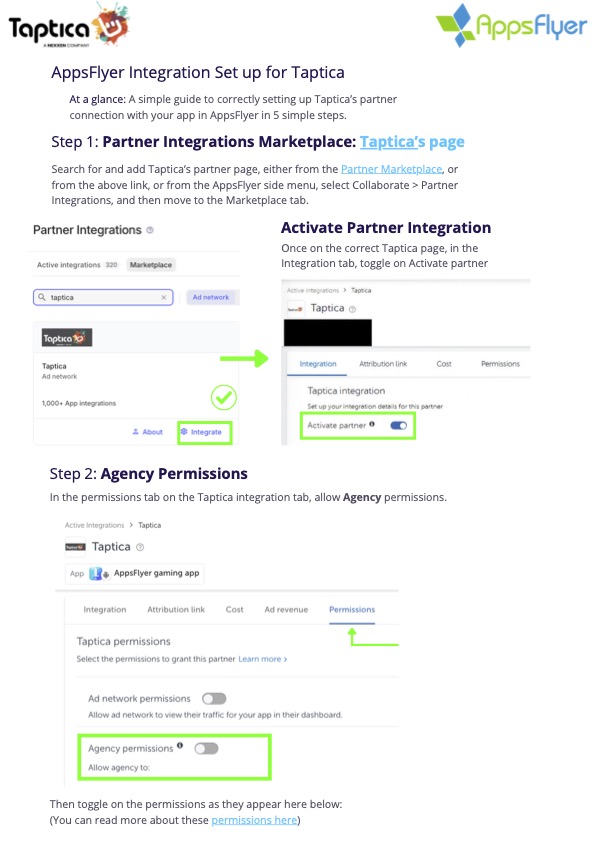
🔗 Direct Marketplace Link: Click here to go directly to Taptica's integration page on AppsFlyer.

Step 1: Partner Integrations Marketplace [cite: 6]

Log in to AppsFlyer, click the direct link above, or use the side menu to go to Collaborate > Partner Integrations and select the Marketplace tab[cite: 7]. Search for Taptica and click Integrate[cite: 7, 10, 19]. Once on Taptica's setup page, inside the Integration tab, toggle on Activate partner[cite: 12].

Step 2: Agency Permissions Configuration [cite: 27]

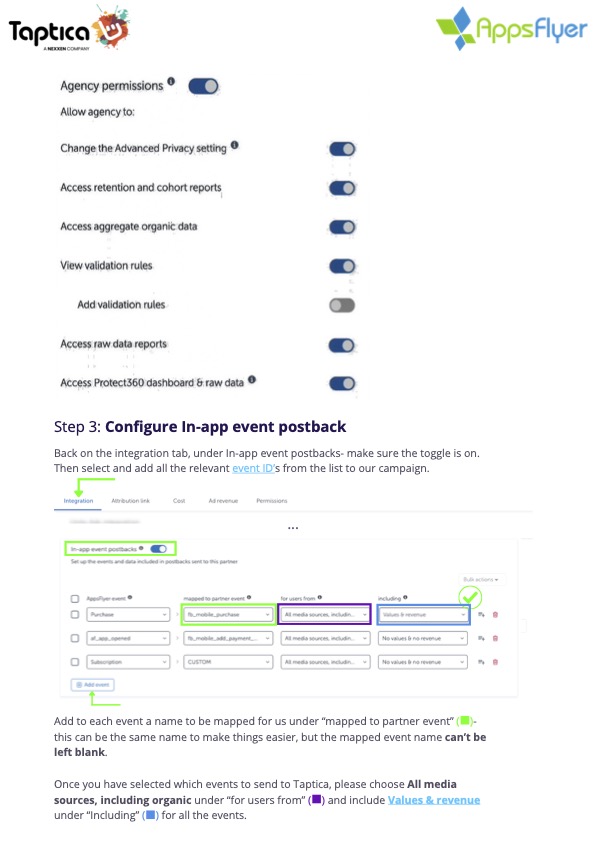
Switch over to the Permissions tab on the Taptica integration panel[cite: 28]. Toggle on Agency permissions and make sure the following specific settings are enabled: [cite: 28, 40, 42]

  • Change the Advanced Privacy setting [cite: 47]
  • Access retention and cohort reports [cite: 48]
  • Access aggregate organic data [cite: 49]
  • View validation rules [cite: 50]
  • Add validation rules (Leave this turned OFF) [cite: 51]
  • Access raw data reports [cite: 52]
  • Access Protect360 dashboard & raw data [cite: 53]

Step 3: Configure In-App Event Postbacks [cite: 55]

Go back to the Integration tab and verify that the In-app event postbacks toggle is turned ON[cite: 56].
Click Add event to include all the relevant event IDs for the campaign, and fill them out as follows: [cite: 57, 79]

  • Mapped to partner event: Enter a name for each event (using the same name makes mapping easier, but it cannot be left blank)[cite: 83].
  • For users from: Select All media sources, including organic[cite: 84].
  • Including: Choose Values & revenue for all added events[cite: 84].

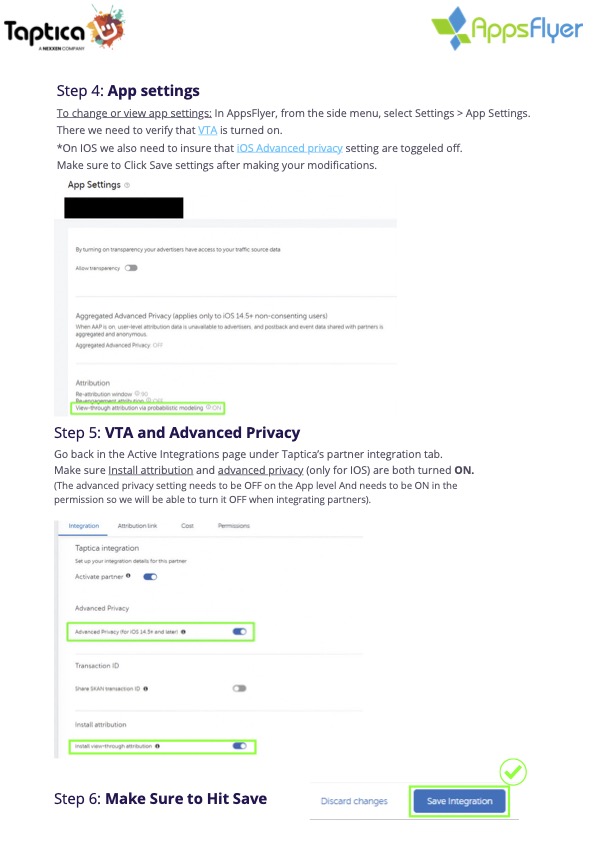
Step 4: Main App Settings Check [cite: 88]

From the main AppsFlyer side menu, select Settings > App Settings[cite: 89]. Scroll down and confirm that View-through attribution via probabilistic modeling (VTA) is turned ON[cite: 90, 104].
*Note for iOS: Make sure that Aggregated Advanced Privacy is toggled OFF at this app level (it should be managed inside the partner permissions instead)[cite: 91, 108].

Step 5: Final Check & Save Integration [cite: 105]

Navigate back to the Active Integrations setup page for Taptica[cite: 106]. Double-check that both Install attribution and Advanced Privacy (for iOS 14.5+) are properly set to ON[cite: 107].

⚠️ CRITICAL FINAL STEP: Scroll down to the bottom of the screen and click the Save Integration button to activate everything[cite: 122, 124].


📍 🔙 Back to MMP Integration Guides

© 2026 Taptica Ltd. | Performance Division of Nexxen

Personal tools
Namespaces

Variants
Actions
Navigation
Toolbox